This article will provide step-by-step instructions on how to view, download, and print documents that have been previously filed from your account.
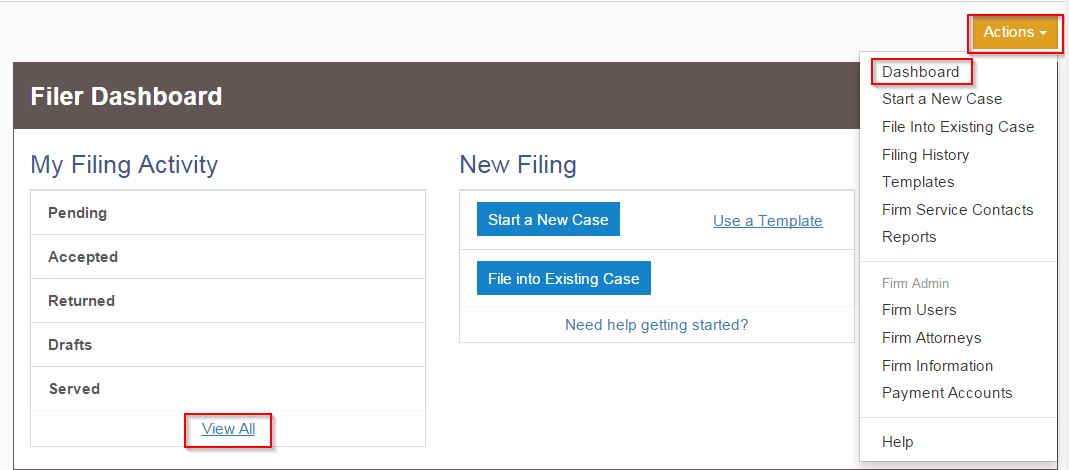
1. From your Filer Dashboard, click "View All" to view your entire Filing History.
- For more information on your Filing History, please refer to this article:
What is the Filing History? How Do I Use It? What is the Status of My Filing?
2. Locate the filing you need, then click the black "Actions" link to the right and select "View Envelope Details."
- For more information on your filing's Envelope Details, please refer to this article:
How To View Envelope Details or Obtain a Receipt
3. Scroll down to the "Filings" section. If this is an envelope that has been submitted but has not yet been accepted by the court, click on the "Download" button in the "Lead Document" section. If this envelope has been accepted by the court, click on the "Download" link in the "Stamped Documents" section.
- For more information on viewing submitted documents, please refer to this article:
How to View the File-Stamped Copy of a Filing I Submitted
4. Once downloaded, you may open, save, and print the document at your leisure. To print the document from a Microsoft Windows desktop or laptop computer, press the "CTRL" and "P" keys on your keyboard. If you are using a Macintosh computer, press the "Command" and "P" keys instead.