IF THESE INSTRUCTIONS DO NOT MATCH WHAT YOU SEE ON YOUR SCREEN...
You may be using our up-to-date Cloud website. To access those instructions, click here.
Note: Any typos or spelling mistakes will result in the account being unable to be accessed. Technical Support cannot correct typos or spelling mistakes in an efile account, and you would need to re-register with the correct email address should this occur.
Users need to use an un-registered email when updating their email address. Using a registered email will cause an error.
Below are steps to update a user information for both Individual Users and Users registered as a Firm:
Registered as a Firm:
The firm administrator is the only person that can make these changes for users in the firm.
To change the email address associated with a user in your firm please follow the steps below
- Click the Orange Actions in the upper right hand corner of your screen then click Firm Users
- This will bring up a list of all the user associated with your firm
- Select the user that needs to have their email address updated, another box will populate at the bottom of the page that allows the proper changes to be made.
- Once all changes have been made select Save Changes in the lower right hand corner
Registered as an Individual:
- Click on the My Account(person icon) tab in the upper right hand corner.
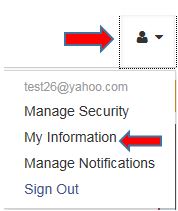
- Click on My Information
- Your User Information will populate > Update your email address
- Once all changes have been made click Save in the lower left hand corner
- Once you update your email address you will be logged off and asked to sign back in using your new email address.
NOTE: If you submitted a filing prior to changing your email address, the Submitted filing notification may still be sent to your old email address, though the Accepted/Rejected filing notifications may be sent to your updated email address.