IF THESE INSTRUCTIONS DON'T MATCH WHAT YOU SEE ON YOUR SCREEN...
You may be using our up-to-date Cloud website. To access those instructions, click here.
To add/edit a user’s roles you first will need to be the Firm Administrator of the account.
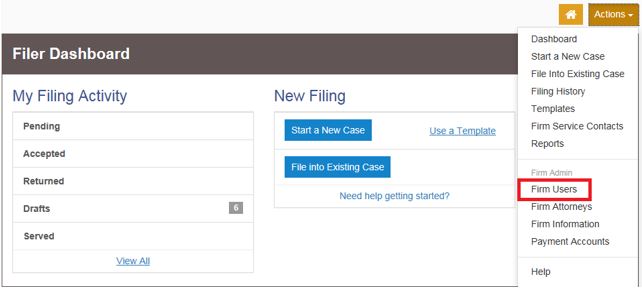
- Click on the Orange Actions tab in the upper right hand corner, then select Firm Users/Agency Users/Users. This will bring up all the users within your firm.

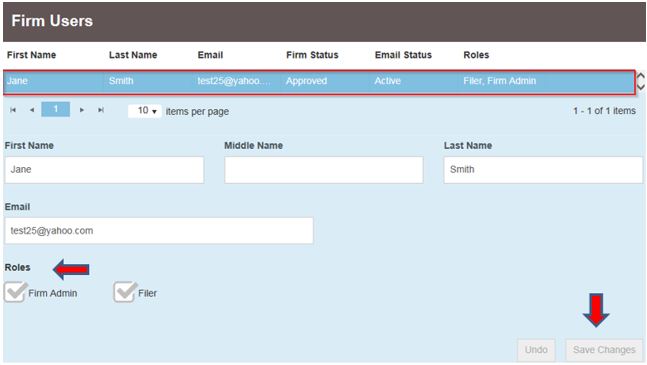
- Select the appropriate user’s name (highlights in blue) you wish to edit and their information will populate in another box below.
- If the user's name has changed due to marriage, divorce, or some other reason, change that here.
- If the user's email address has changed, change that here as well.
- Select the role or roles (using the check boxes) that you would like to assign to the user then click on Save Changes on the lower left hand side of the screen.
- Please Note: Do not uncheck yourself as a Firm Admin without designating a new Firm Admin first. If you remove the Firm Admin role before adding a new Firm Admin, you can lose the ability to manage the roles of the user.
NOTES:
- If the Firm Administrator changed the email address of a firm user, then the user need to use the updated email address to be able to login to their account.
- The Criminal Firm Admin and Criminal Filer roles are assigned by the State or someone who is an existing Criminal Firm Administrator. The eFile Technical Support team will not be able to assign these roles.
- NOTE: eFile Technical Support staff cannot change or alter Firm User information in any way. If changes must be made to your Firm User information, only the Firm Administrator can make these changes.