IF THESE INSTRUCTIONS DON'T MATCH WHAT YOU SEE ON YOUR SCREEN...
You may be using our up-to-date Cloud website. To access those instructions, click here.
- We do not recommend sharing your efile account credentials (i.e. username and password) with others. If you need someone else to file for you, please contact the court for more information before sharing your efile account credentials with anyone else.
- The email address you register will not affect your case. We recommend using an email address you are comfortable using for online accounts you regularly use for day-to-day business.
- You must have a physical address in the United States in order to register.
- If you need to register outside the United States, please visit this article:
How to Register from Outside the United States
- If you need to register outside the United States, please visit this article:
To register an account, please select one of the options below.
PRO SE / INDIVIDUAL ACCOUNTS
Please Note: Some states have upgraded to a newer version of the efiling website. If you are located in one of those states and the updated version of the efiling site appears after selecting your state, please view this article (for the most up-to-date version of the site) instead. If your state has an updated version of the efiling site but you prefer using this Legacy (older) version of the site, select Legacy Sites from the list above instead of E-File & Serve.
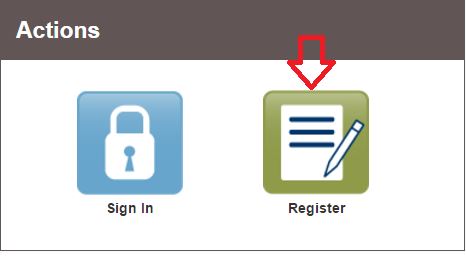
The home page has a section on the bottom left called Actions. To register a new account, click the green Register button. If you already have an account, click the blue Sign In button.
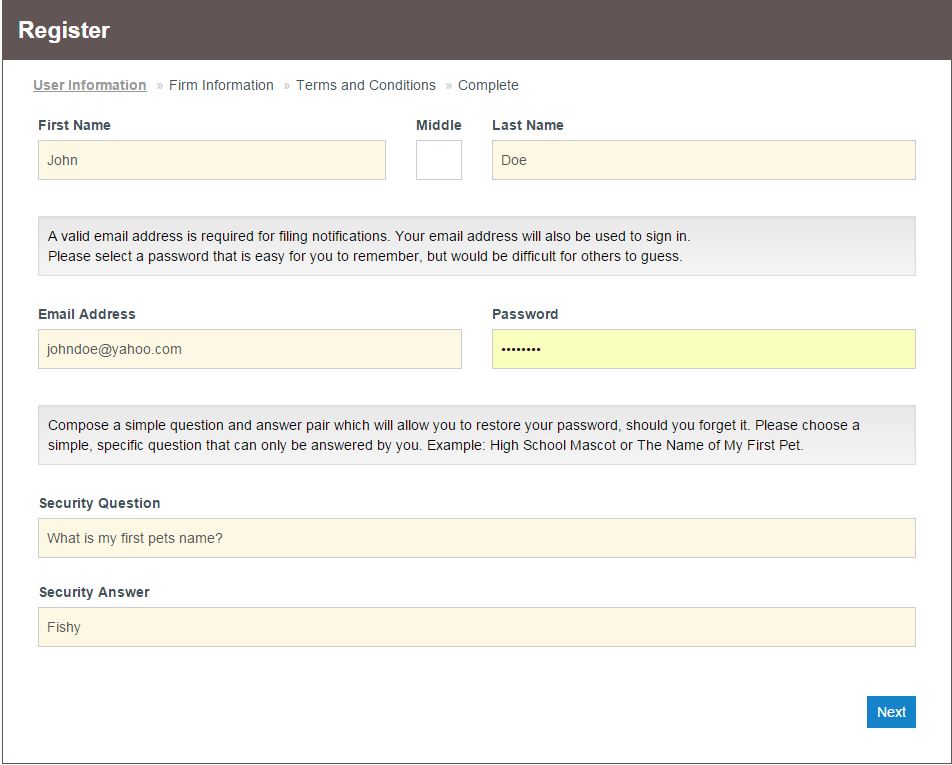
- First Name and Last Name
-
Email Address (Note: This will be the email address or user ID you sign in with, and receive status updates to for all of your filings.)
- Please Note: This email can only be registered once in the eFiling system
- Please Note: You MUST have an email address to register an account. If you do not have an email address, you must sign up for one via Gmail, Yahoo! Mail, Outlook Email, AOL Mail, Proton Mail, or some other similar email service before you can register for an account with us.
-
Enter a Password (Note: Make sure your password meets the password requirements.
Your password must be at least 8 characters and include an upper case letter, a lowercase letter, and a number or special character)
- Enter a Security Question and a Security Answer
After you fill out these fields, click the blue Next button in the bottom right corner of the page.
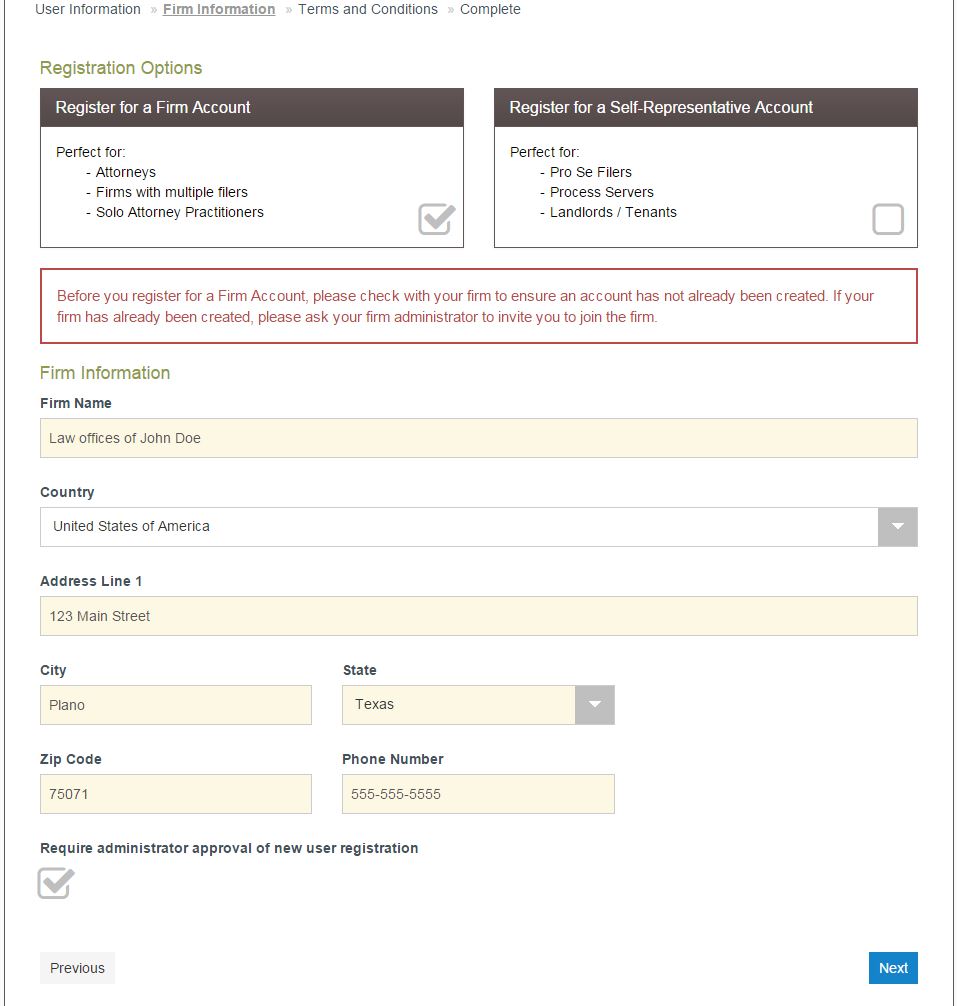
Next you will see the Registration Options. If you don't have a lawyer, you should choose Register for a Self-Represented Account. Click the circle or checkbox at the bottom right of the box to select the account type.
-
Your Address, City, State, and Zip Code
- Please Note: If you enter a P.O. Box as your address, leave out the periods and enter the phrase "P.O. Box" as "PO Box". This is purely for registration purposes; Tyler Technologies will NOT send you any mail.
- Your Phone Number
Note: If you are registering using a mobile device and are unable to select your State, you may need to register and file using a computer.
Many mobile devices do not properly interact with the dropdown menus and some touch screens are unresponsive to certain fields on the eFile website.
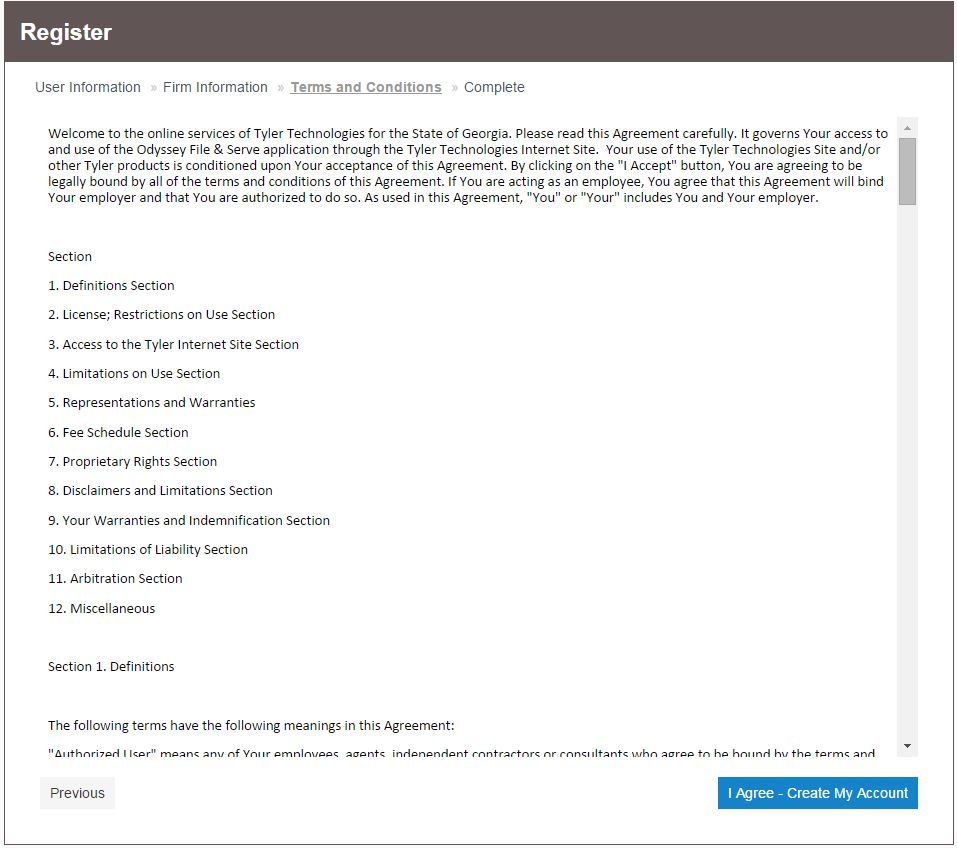
Next you will see the site's Terms and Conditions. You can copy and paste the Terms and Conditions onto your computer if you would like to save them. You must click the blue I Agree – Create My Account button in the bottom right corner to continue.
Next you will see a message confirming your account registration. You must check the email address you registered with to find your verification email. You must click the link in your verification email before you can sign in with your new account
Note: You do not have to register an account for each county separately. Once you're registered on the state's website, you can file into any county that's listed on the website.
See below for next steps.
If you don't have your documents ready for e-filing yet, read these articles:
If your documents are ready, you need to add a payment account before you can e-file:
If your documents are ready and you have added a payment account, read these articles to learn how to e-file:
ATTORNEY / LEGAL PROFESSIONAL ACCOUNTS
If you are a Legal Professional, please check with your firm/office to ensure an account has not already been created. If your firm's account has already been created, please ask your Firm Administrator to invite you to join the firm.
NOTE: Sometimes, a firm's email security protocols may prevent the option to send a new firm user the link to create a firm account from working properly. When this happens, the new user may click the account creation link and be taken to the page to create a brand new firm account instead. If this happens to you, direct your Firm Administration to copy the account creation URL on the Firm Users page and to paste it into a new email to send to you instead.
If you have multiple locations for your firm, it is up to you if you wish to register all employees under one firm account, or have separate firm accounts. However, an email address can only be registered with one eFile & Serve account. (You cannot use the same email address for both an Individual account and a Firm Account.)
Note: Out of state attorneys or Pro-hac attorneys, if you register for a Firm account, the site will require a state bar number. If the state has not provided you with that bar number, then register as a Self-Represented/Individual account.
Please follow the steps below to register for a new account. Registration is free; it costs nothing to create an efiling account.
To begin, go to Filenow.me (also called Justice Public Facing Solutions), scroll down to Legacy Sites and click on your state.
Click the Green Register Icon
You will be directed to the User Information page. You will want to input the information for the party that you are registering for.
Please Note: These fields are required for registration.
- First Name, Last Name
- Email Address (This will be the email address or user ID you sign in with, and receive status updates to for all of your filings.)
- Please Note: this email can only be registered once in the eFiling system.
- Create a Password: Your password must be at least 8 characters and include an upper case letter, a lowercase letter, and a number or special character.
- Create a Security Question and an Answer
- Click Next
You will be directed to the Registration Options. Select the Appropriate Registration option:
A.) Register for a Firm Account (Select this option even if you are a solo practitioner)
B.) Register for a Self-Representative Account (Filing without an attorney)
Please Note: If you are not an attorney or are not filing on behalf of an attorney, please register your account as a Self-Representative Account. If you are an out of state attorney please check with your local court to see if you need to register as a Self-Representative Account. New Mexico and New Hampshire do not accept Self-Represented/Individual account registration. You will need to contact the court for a Pro Hac attorney number.
Complete the Contact information:
- Firm Name (If Registered for a Firm Account)
- Address
- Please Note: If you enter a P.O. Box as your address, leave out the periods and enter the phrase "P.O. Box" as "PO Box". This is purely for registration purposes; Tyler Technologies will NOT send you any mail.
- City
- State
- Zip
- Phone Number
- Click Next
You will be directed to Terms and Conditions. You can copy and paste the Terms and Conditions into a Word Document if you would like to save them for your records. You must Click on I Agree – Create My Account.
You will be directed to - You have successfully Registered! Please go your email inbox to activate your e-filing account.